
Silhouette Studio Software is the primary software for Silhouette cutting machines, including the Cameo, Portrait, and Curio series. It allows you to create, edit, and send designs to the machine for final cutting and project creation. Like all common software and applications, it also needs to be updated periodically. In short, Silhouette Studio acts as the brain of your crafting machine, and if it’s outdated, it can cause problems while designing.
In this blog, I am going to guide you through the right steps to update your Silhouette Studio Software, ensuring smoother and uninterrupted project creation. Now, let’s briefly look at why updating the software is important and how you can do it.
Why Update Silhouette Studio Software?
Silhouette Studio is the main design software for Silhouette machines, which you can download and install on your computer. Updating this software brings several benefits and helps you create better and smoother projects with your machine. Here are the top reasons for updating the software.
- Access new features: Silhouette regularly adds new shapes, features, and related tools to improve your workflow.
- Improved performance and stability: Eliminates technical glitches within the software and updates the features. Overall, it ensures smooth functioning and speed of the software, leading to a better user experience.
- Compatibility with new devices and files: An updated version of Silhouette Studio is compatible with the latest Silhouette machines and various file formats.
- Security and protection: Updating Silhouette Studio software regularly helps protect the system from malware and viruses.
- Prevents errors during cutting: The older version of Silhouette Studio may cause issues during cutting, resulting in improper designs. But the latest version will prevent these errors from occurring.
In conclusion, the ‘Silhouette Studio Software Update‘ ensures a smoother and error-free cutting experience.
Steps to Update Silhouette Studio Software
When you know what ‘Silhouette Studio Software‘ is and why to update it, let’s understand the process of updating it in brief.
Step 1: Navigate to Silhouette America Website
To begin, visit the official Silhouette America website. This is where you can download the latest version of Silhouette Studio.
Step 2: Download the New Version of Silhouette Studio
Once you are on the Silhouette official website, click the “Get Software” option and then click the “Download” button.
The website will automatically detect your OS (operating system). However, if it doesn’t detect it, you can select it manually.
Step 3: Install the Software
Once the download is complete, locate the file in the Downloads folder where it is usually saved. Double-click on it once you find it. The good thing is that you don’t need to delete the older version of Silhouette Studio to install the latest version. Complete the on-screen steps to install the software and move ahead.
Once the installation is complete, you can find the Silhouette Studio logo on your computer. You can simply double-click on it and open the app.
Troubleshooting for Silhouette Studio Software Update
Sometimes the update may not install successfully. This can happen for several reasons, such as a weak internet connection, insufficient disk space on your system, or the software not being compatible with your system requirements. To resolve this issue, follow the troubleshooting methods below.
Re-download the software: The previous download or installation might be corrupted, so use a different browser to navigate the Silhouette website and download the latest version of the software.
Temporarily disable antivirus or firewall: Sometimes antivirus or firewall software can interfere with updating Silhouette Studio, so you can temporarily disable them using these methods.
- Go to the Windows Start icon on the computer’s taskbar at the bottom, search for Windows Security, and open it.
- Select Virus & Threat Protection to handle antivirus software.
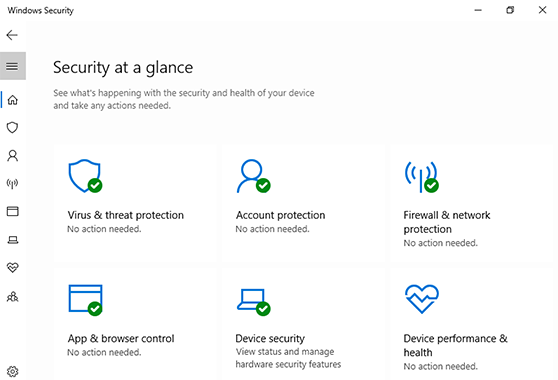
- Now, click the Firewall & Network Protection to manage the firewall settings.
- Select “Manage Settings” and toggle off Real-time protection.
- Go to the Firewall & Network protection, choose your network, and toggle off the firewall.
Check the internet connection: A weak internet connection can also stop a successful update of Silhouette Studio software. Verify if the internet connection is secure.
Final Words
That’s it for updating the Silhouette Studio Software. It needs regular updates to keep your crafting machine working smoothly, as outdated software may cause issues with your projects. For instance, it may produce improper cuts, work slowly, or fail to function at all. Silhouette releases newer versions of Silhouette Studio, so it’s always a wise decision to update them on your computer as soon as possible.
Frequently Asked Questions (FAQs)
Do I Need to Update if My Silhouette Software Is Working Fine?
No, you don’t need to update the software if it’s working fine. However, if an update is available, there is no harm in updating it. It’s always a good idea to update your software, as it can fix the common technical issues within the software.
Is Silhouette Studio Free to Update?
Yes, updating Silhouette Studio is completely free of charge. You can download & install it from the interface or the official website. It’s not a paid subscription, so you can update it anytime without any cost.
How Do I Add My Silhouette Cameo to My Computer?
Follow the instructions given below to add a machine to your computer:
- You have to visit Silhouette’s official website.
- Click the More Info button under the Silhouette Studio logo.
- Select Windows 64-bit or Windows 32-bit, depending on your computer.
- Press Download and then open the downloaded file.
- Follow the installation prompts.
- Launch the Silhouette Studio program.
That’s it: the crafting machine will be added to your computer.