
Silhouette Cameo 3 is a popular craft-cutting machine from Silhouette. It uses a blade to cut a wide array of materials. While using Silhouette Cameo 3 is simple, it can be more useful if you connect it to Bluetooth. Connecting your Silhouette Cameo 3 with Bluetooth allows you to cut wirelessly.
If you’re wondering “How to Connect Silhouette Cameo 3 to Bluetooth“, then you have come to the right place. In this guide, we will walk you through how to connect Silhouette Cameo 3 to Bluetooth to cut wirelessly.
Let’s proceed to learn more about the Bluetooth connection process.
How to Connect Silhouette Cameo 3 to Bluetooth?
The Silhouette Cameo 3’s Bluetooth capability allows you to connect the cutter and your computer together wirelessly. Here are the steps to connect your Silhouette Cameo 3 to Bluetooth.
Insert the Bluetooth Adapter
Here is how to insert the Bluetooth adapter into the slot:
Step 1: Locate the Bluetooth panel at the bottom of the machine and unscrew it.
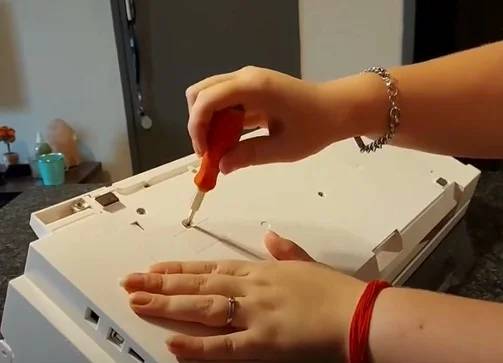
Step 2: Then insert the Bluetooth adapter into the slot and screw the Bluetooth panel again.
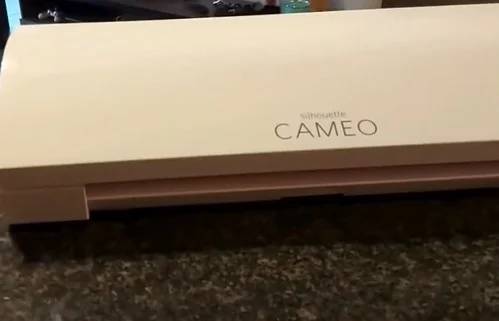
Step 3: After inserting the adapter, return the machine back to its actual position.
Connect Your Silhouette Cameo 3 to Bluetooth
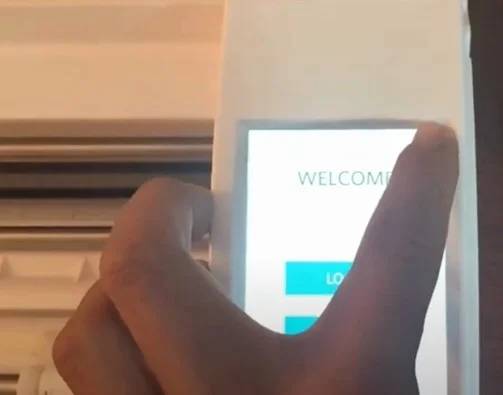
Step 1: Turn on the machine.
Step 2: Then tap the Settings icon on the welcome screen.
Step 3: After that, c using the down arrow option and select Bluetooth.
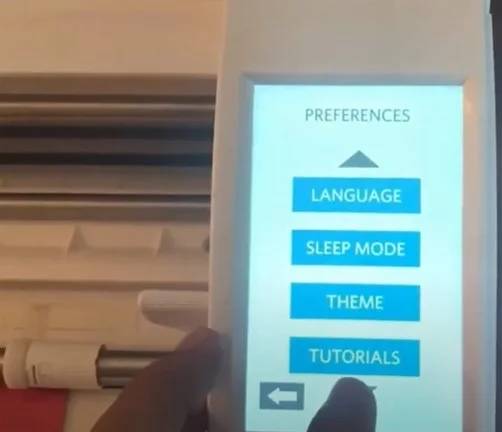
Step 4: Turn on the Bluetooth. Then, tap the back button to return to the home screen.
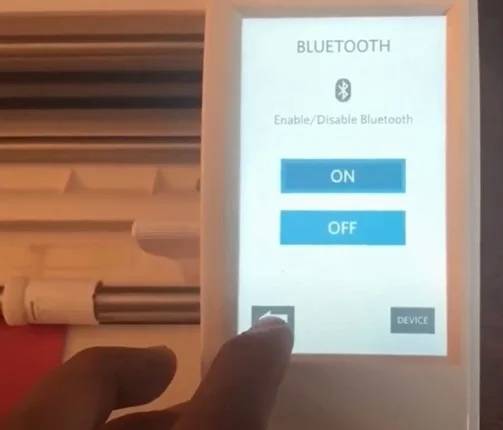
Step 5: You can now see the Bluetooth icon visible on the screen, indicating it’s enabled.
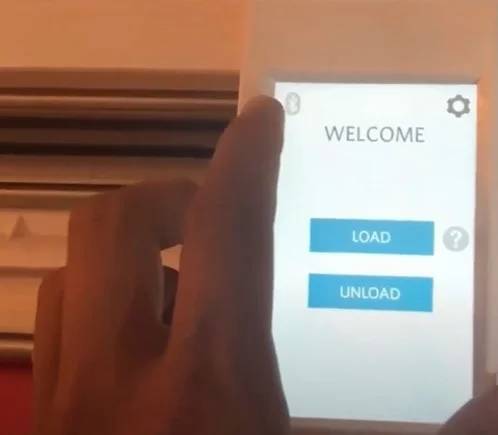
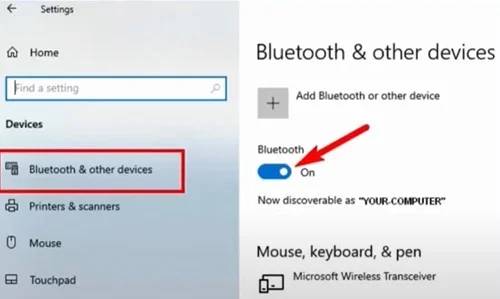
Step 6: Now, navigate to Bluetooth settings on your computer.
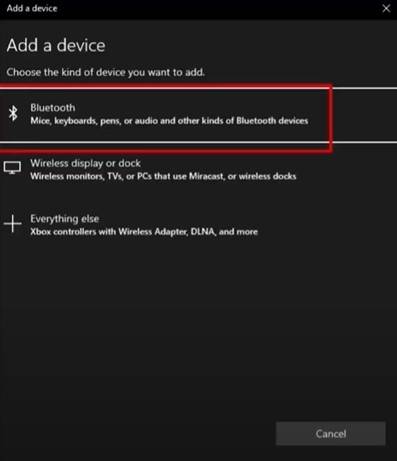
Step 7: Turn on the Bluetooth. Then click on Add a Bluetooth or Other Device.
Step 8: Select Bluetooth from the options appearing on the screen.
Step 9: Select your Silhouette Cameo 3 from the list of devices available.
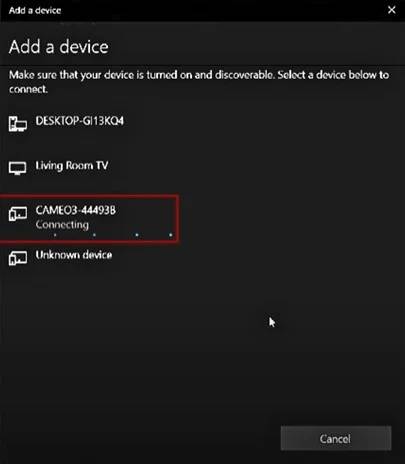
Step 10: Once your Silhouette Cameo 3 is paired, click the Done button.
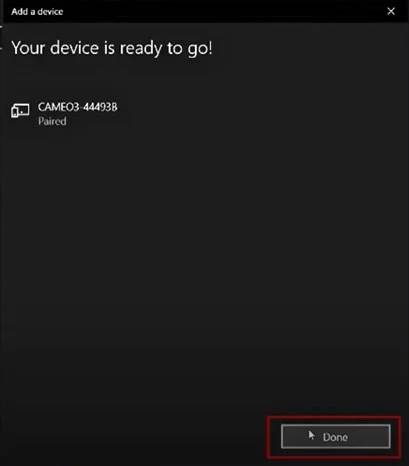
Step 11: After that, go to the Silhouette Studio.
Step 12: Then, open the Send panel.
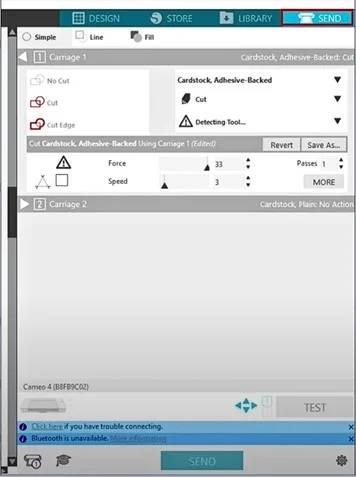
Step 13: Click the Machine icon on the bottom. Then, select your Silhouette Cameo 3 with the Bluetooth icon to connect.
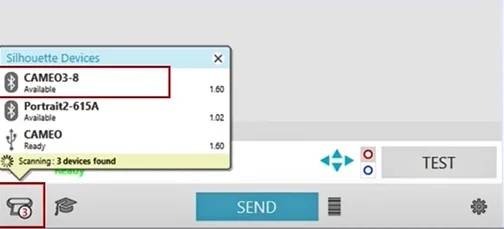
Step 14: After connecting successfully, it should show the status Ready.
Congratulations! Your Silhouette Cameo 3 is now connected to Bluetooth and ready to cut wirelessly.
Bluetooth Adapter Recommendation for Bluetooth-compatible models
The Silhouette Cameo Bluetooth Edition model includes a pre-installed Bluetooth adapter. While other Silhouette Cameo 3 models available in different markets across the globe do not come with a pre-installed Bluetooth adapter, they are still Bluetooth-compatible. They can have a third-party Bluetooth adapter installed.
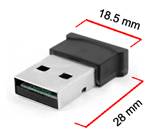
If you want to connect your device wirelessly via Bluetooth with a Silhouette Cameo 3 model, you can purchase a 3rd party Bluetooth adapter that meets the requirements below:
- Size: The dimensions of the recommended adapter must not exceed the specifications provided above. However, either measurement can be smaller.
- Type: The required chip type for the Bluetooth adapter is the CSR chip: CSR8510 A10. Adapters with alternate chipsets will not work with the Silhouette Cameo 3.
Conclusion
Connecting your Silhouette Cameo 3 to Bluetooth is a simple process. By following the above steps, you will be able to connect Silhouette Cameo 3 to Bluetooth easily. Using Silhouette Cameo 3 can become more convenient if you connect it to Bluetooth. It allows you to cut a wide array of materials wirelessly from your computer.
Thank you for reading this post. Please stay connected with us for more tips and guides to make the most of your Silhouette Cameo 3.